
Launch
Launch a coin
Create a coin from one form — choose the platform, curve and pair, review your first buy, and follow the launch transaction.
Configured launch catalog by network
- Solana
- 4
- BNB Chain
- 2
- Ethereum
- 0
- Base
- 5
- Robinhood Chain
- 7
- Stable
- 1
The Rtp.Fun create surcharge is zero. Network costs, the selected configuration’s creation fee and a first buy can still cost money. Creator earnings depend on the selected platform and configuration; see Fees.
Step by step
Section titled “Step by step”1. Open the form
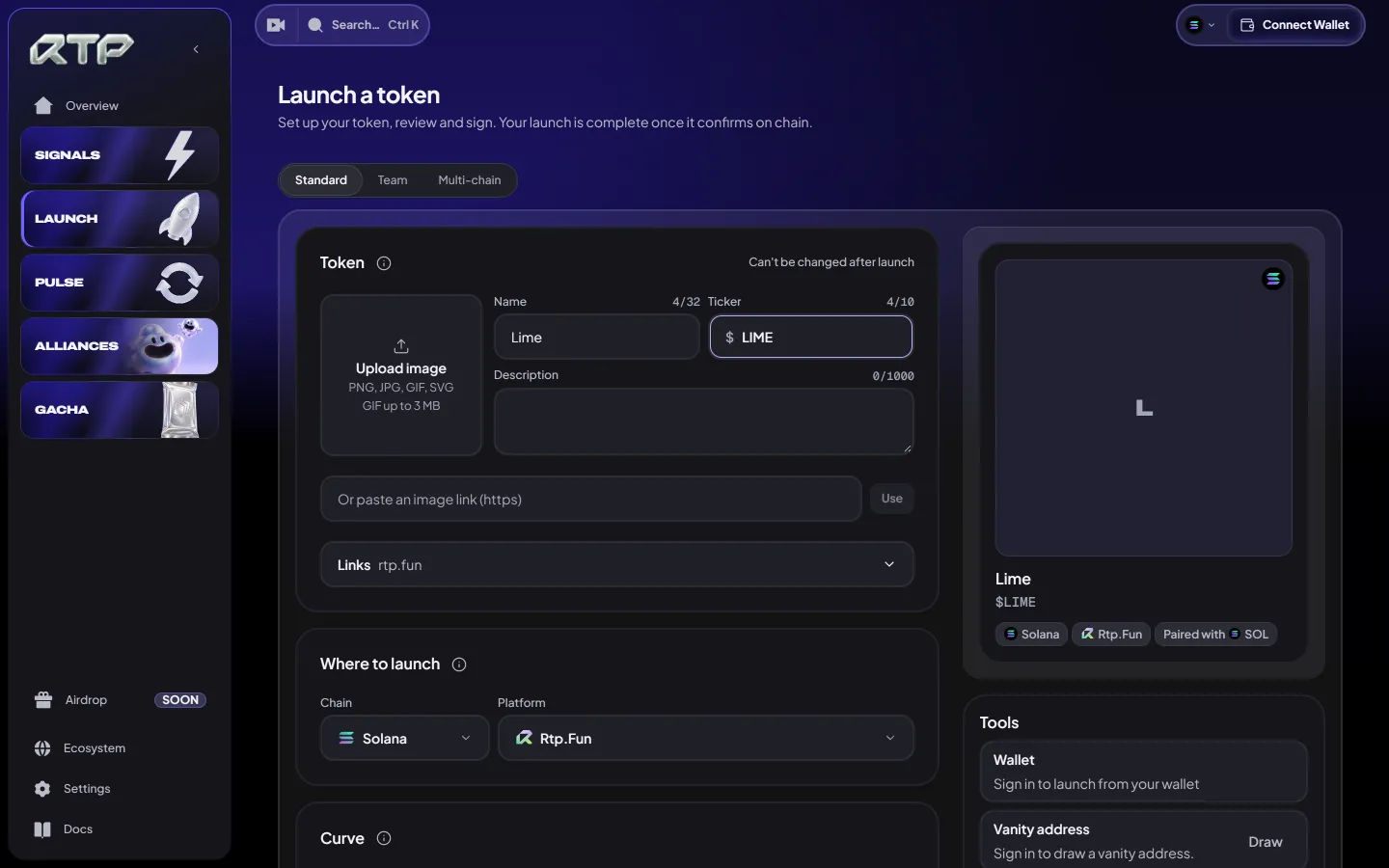
Section titled “1. Open the form”Go to Launch and choose Create token, or pick a way to launch from its menu:
| Way | What it does |
|---|---|
| Standard | One token on one platform |
| Team | Launch together with your team |
| Multi-chain | One token on several chains at once |
The menu includes unfinished options. A yellow dot identifies incomplete controls; neither a selected mode nor a filled room proves that the selected route can execute. Follow the form’s availability and review for that exact network and platform.
The first time you open the form, Before you launch summarises what you agree to: you sign every transaction yourself, a launch is final and public, tokens can lose all their value, and the eligibility rules. Choose I agree once you have read the Terms of Service, or Not now to look around first.
2. Describe your coin
Section titled “2. Describe your coin”Under Token, add an image, a name and a ticker. A description and links to your website and socials are optional. Check them carefully: metadata-editing rights vary by platform, and Rtp.Fun cannot promise that a launched name, ticker or image can be changed.
3. Choose where it launches
Section titled “3. Choose where it launches”Under Where to launch, pick the chain and an available platform. Rtp.Fun groups the Raydium and Meteora curves on Solana. The form checks the factory and preparation capability for that exact platform and network. Launch platforms describes the catalog, not a guarantee that every route is currently available.
4. Pick a curve
Section titled “4. Pick a curve”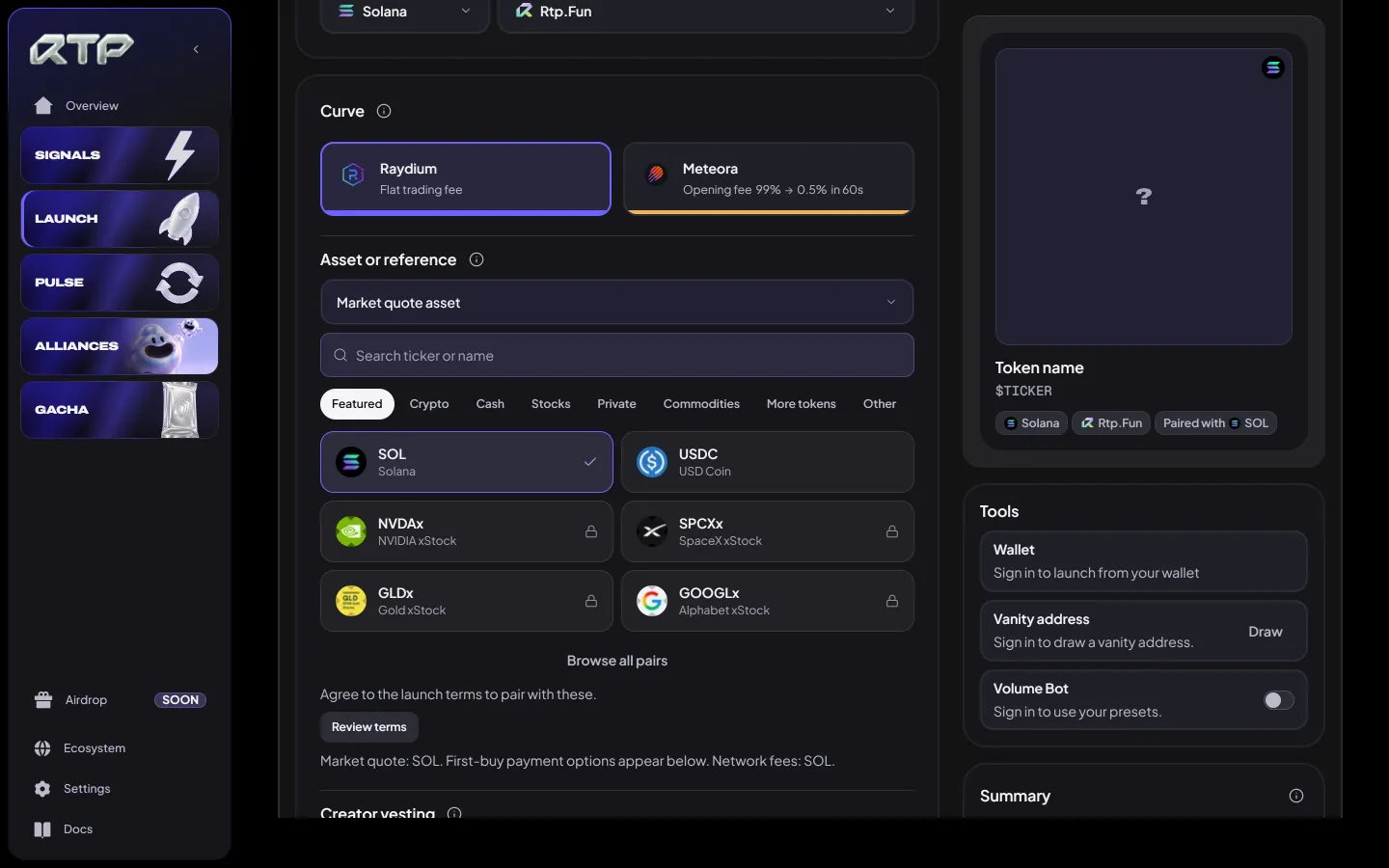
| Curve | Best for |
|---|---|
| Raydium | A curve with fees and pairs read from the selected platform configuration |
| Meteora | A configuration-specific curve; an opening schedule and a first-buy minimum apply only when that configuration provides them |
The full terms of each curve are on Rtp.Fun curves.
5. Choose the pair
Section titled “5. Choose the pair”Under Asset or reference, choose a pair offered for the selected curve. More tokens shows additional supported assets when available. Pair availability and reference-asset restrictions are checked separately; choosing a reference does not itself grant ownership of the underlying stock or commodity. See Pairs.
6. Add a first buy
Section titled “6. Add a first buy”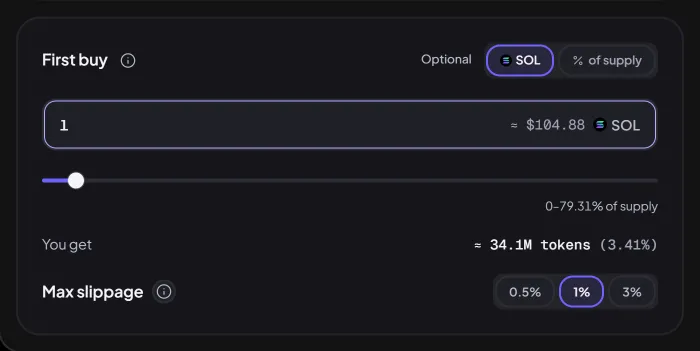
A first buy is your own purchase of your coin. Its transaction grouping, fee and supported purchase range depend on the route. Check whether the review includes it in the creation transaction or as a later step. Enter an amount or a % of supply where supported. You get shows an estimate of tokens and supply share, not a confirmed receipt. Max slippage sets the permitted price-movement bound.
7. Check the summary
Section titled “7. Check the summary”The Summary beside the form updates as you type: total supply, the amount at which your coin graduates, what you earn on every trade, and how the supply is split between the curve and the pool it graduates into.
8. Add tools (optional)
Section titled “8. Add tools (optional)”Where available, Tools can attach a saved Volume Bot preset. A saved preset does not by itself authorize execution; check route availability, limits and any additional approval after launch. See Tools and automation.
9. Review and launch
Section titled “9. Review and launch”Choose Review. Check the coin, curve, pair, first buy, fees and recipient, then confirm with your Wallet. Follow the original execution until its outcome is established. Confirmed launches can appear on the Launchpad after indexing; a missing listing is not a reason to send another launch transaction.
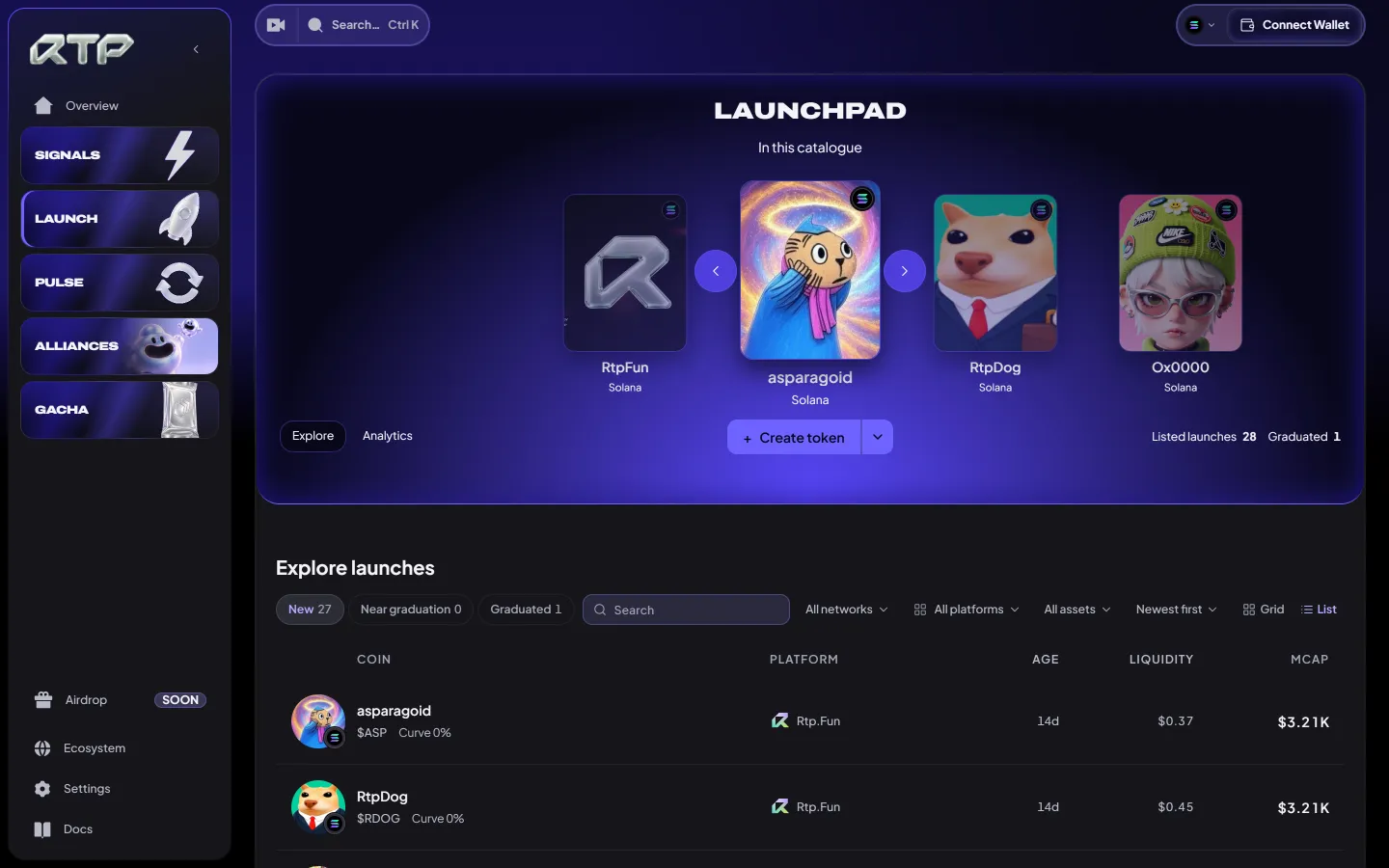
The Launchpad opens with featured launches you can browse, with Explore and Analytics beside Create token. Below, New, Near graduation and Graduated sort the catalogue; filter it by network, platform and asset, and switch between Grid and List.
After launch
Section titled “After launch”- Creator earnings. Check the amount available to claim and the platform’s claim terms in Portfolio. A launch does not guarantee revenue.
- Graduation. Follow migration into the configured pool and verify the resulting liquidity-lock state.
- Track it. My launches lists every coin you launched, with its status, market cap and transaction.
For issued coins, the curve percentage follows the confirmed on-chain graduation metric for that protocol. On the Raydium curve this is quote raised against the graduation target, not the percentage of tokens sold. Check the displayed data age; stale or unavailable readings are not zero progress. A full progress bar does not by itself prove migration has completed. Other market-provider curve figures are labelled separately and may use a different measure.
Launch together
Section titled “Launch together”An alliance can organize a Solana launch from a launch room with 2 to 4 seats. Filling seats is coordination, not automatic execution or proof of a purchase by every member. Where the route is available, the opener reviews and confirms the launch separately. Trading rewards follow the launch Wallet and selected configuration; seats do not divide those rewards. See Alliances.
Related: Rtp.Fun curves · Fees · Launch platforms